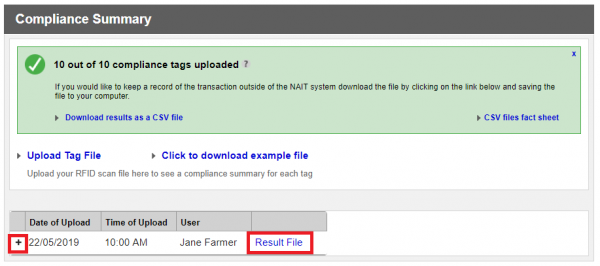


How to prepare a compliance summary report
Use this step-by-step guide to create a compliance summary report for your NAIT location.
Before you log in to NAIT
Prepare a CSV file of scanned tags for your animals. The report only includes information about animals in the file. For best results, upload the file on the day you scan the animals and before you move any of them off your farm.
Make sure the file:
- is current
- includes RFID numbers only
- is saved in a CSV format
- is saved on to your computer so you can find it again.
How to create the report in NAIT
Log in to your NAIT account and follow these steps.
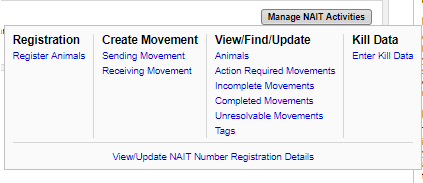
- Select Manage NAIT activities, and then View/update NAIT number registration details. If you have more than 1 NAIT number, make sure you select the location where you scanned the animals.
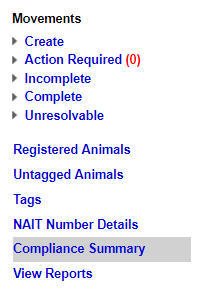
- Select Compliance Summary on the left of the page.
- Select Upload tag file. If you want to see an example file of the correct format for upload, select Click to download example file.
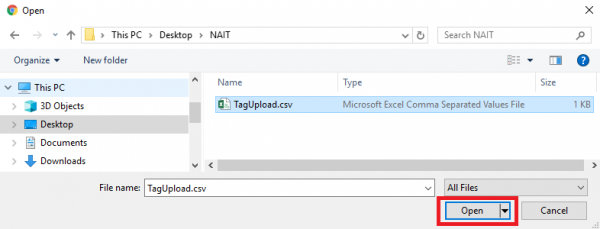
- Select the tag file to upload from your computer and choose Open.
If your upload was successful it will display on the screen. - Click the '+' next to the applicable date to display the table that shows the results.
- Select Result file to download the result for each RFID.